How to enable SSL in Apple Mail (OSX 10.12-Current)
|
|
Step 1: Enabling SSL Settings
|
|
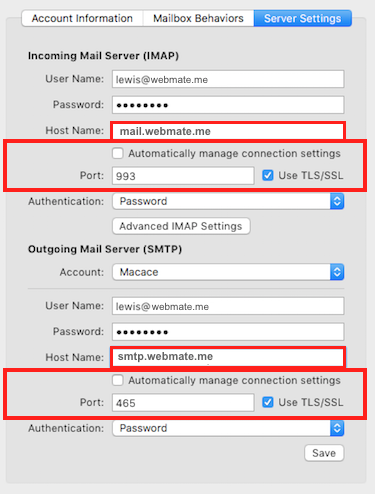
Please Note: You would need to have the below WebMate mail servers set in order for the SSL configuration to work...
Incoming Host Name: mail.webmate.me
Outgoing Host Name: smtp.webmate.me
Open Apple Mail.
Go to the Mail menu (top left of screen) and choose Preferences.
1. Select the Accounts button (top left of Preferences panel).
2. Select the account that requires SSL enabling.
(from the white panel on the left).
3. Click Server Settings in the main panel on the right.
4. Under Incoming Mail Server (IMAP) make sure that Automatically manage connection settings is not ticked.
5. Tick Use TLS/SSL - The Port should change automatically to 993 for IMAP or 995 for POP.
6. Under Outgoing Mail Server (SMTP) make sure that Automatically manage connection settings is not ticked.
5. Tick Use TLS/SSL and ensure the Port is set to 465
That's it! - Your account is now configured to use SSL!
|
 |
Powered by WHMCompleteSolution


Quick Overview...
To enable SSL on your email account in Apple Mail, go to your Incoming and Outgoing mail server settings and make sure that Use TLS/SSL is ticked in the Advanced section for both mail server settings.
Detailed Instructions...