Change the mail server settings on Outlook 2011
|
Quick Overview...
To change the mail server settings on Outlook, go to your Account information and make sure you have entered your WebMate email address, password and the mail server details correctly.
Detailed Instructions...
|
|
Step 1: Go to your account information
|
Open Outlook.
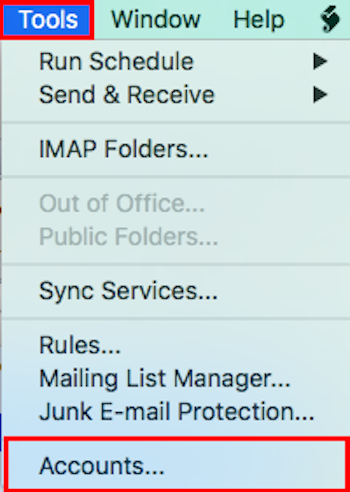
To get to your account information/server settings, go to Tools and then Accounts... in the top menu.
|
 |
Step 2: Review the server settings
|
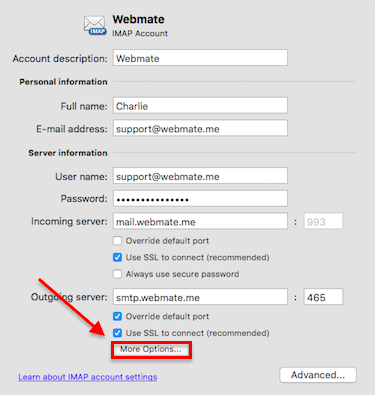
Once you are able to view your server settings, make sure the below settings are placed...
Incoming Mail Server: mail.webmate.me
Username: Full email address
Password: Email address password
Port: 993 for IMAP and 995 for POP
SSL: ON
Outgoing Mail Server: smtp.webmate.me
Username: Full email address
Password: Email address password
Port: 465
SSL: ON
Go to More Options...
Authentication: Username and Password
Username: Full email address
Password: Email address password
|
 |
Powered by WHMCompleteSolution